
How to Provide Teacher Resource Access 
 In How To

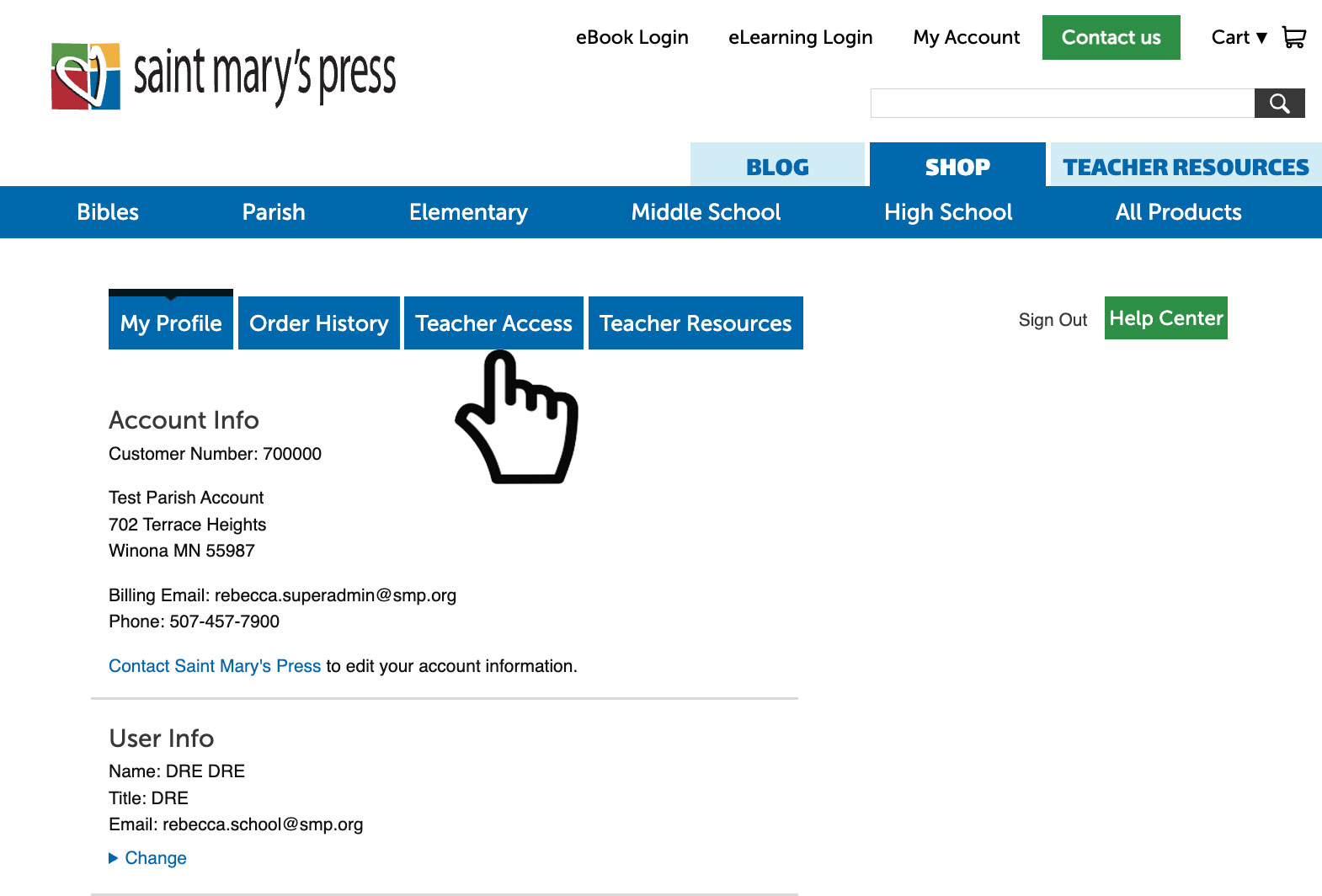
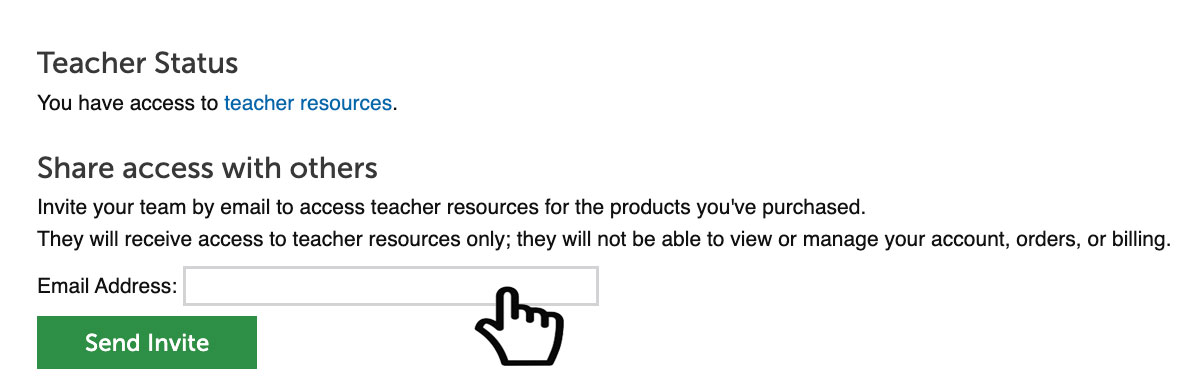
1. Log in to the website and navigate to your account page: www.smp.org/account/edit

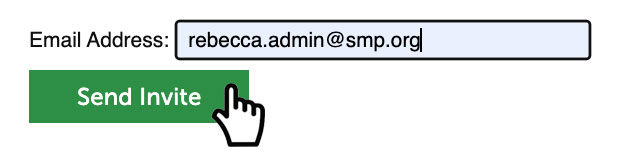
2. Select the ‘Teacher Access’ tab, https://www.smp.org/account/teacher/. Next, in the field beneath “share access with others, simply enter the email address of your team member

Note: You must have teacher resource access to send invites. Request teacher access by completing the form or call us at 1-800-533-8095.

3. Select the ‘Send Invite’ button and an email confirmation will be sent to your team member at that email address. They will have 30 days to accept your invitation.

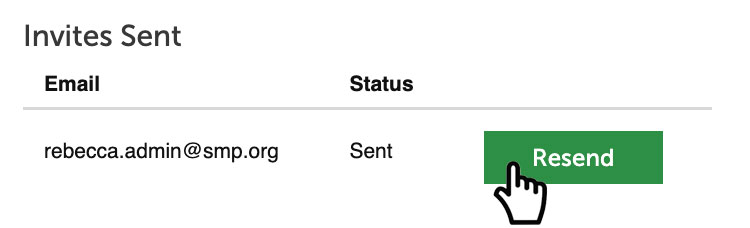
4. You can view the status of their invite in the Status column located next to the Resend button.

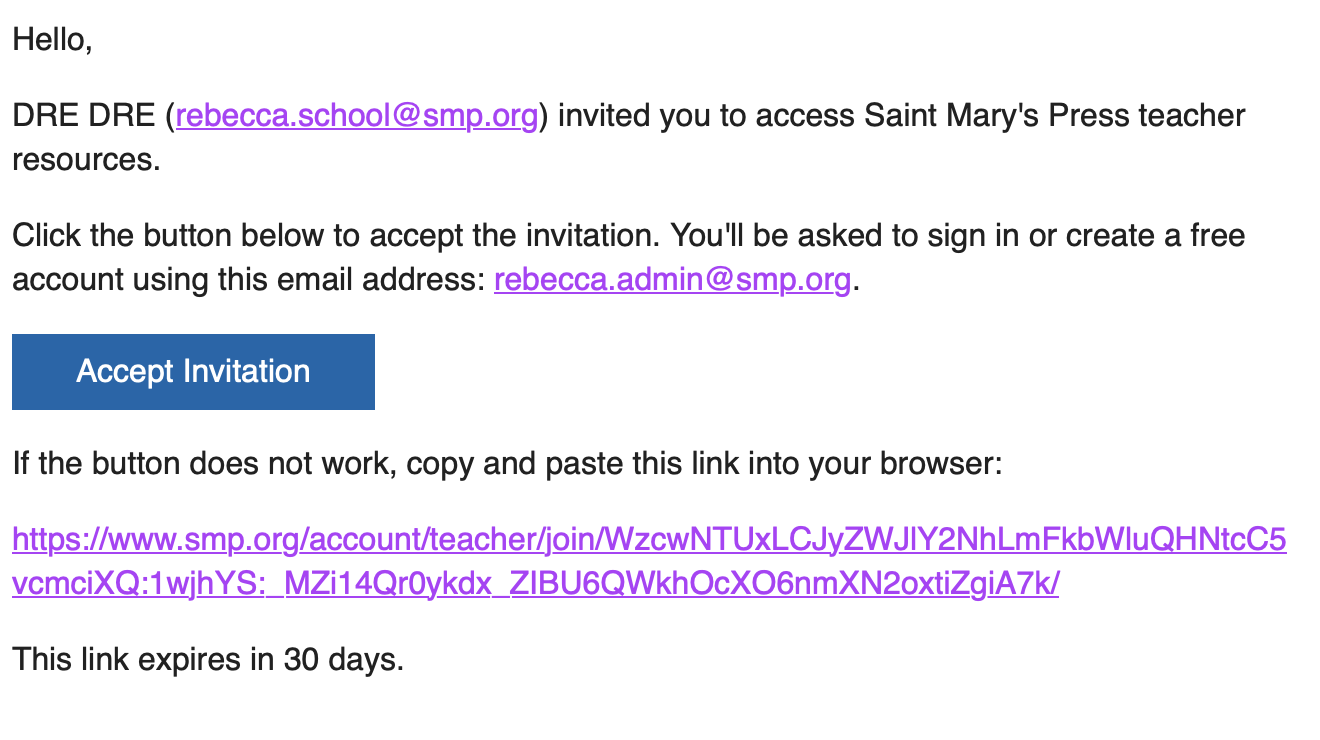
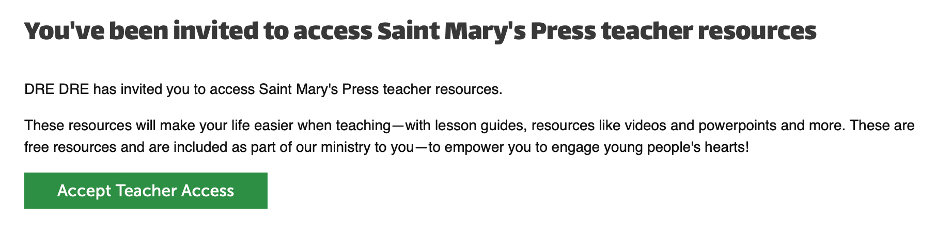
5. Below is the email that your team member will receive. 

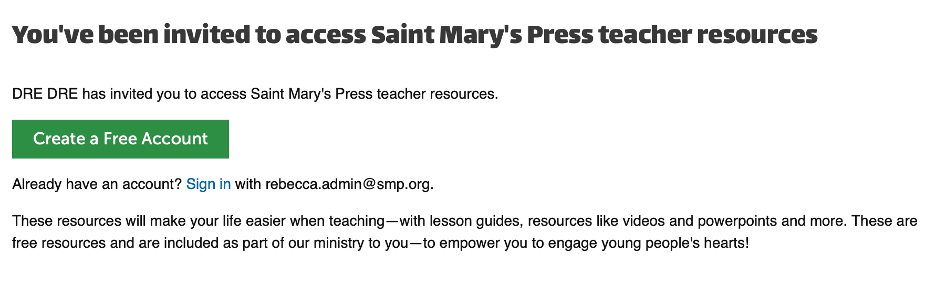
6. This is what your team member will see when they click the Accept Invitation button, provided they have existing Teacher Resource access. 

Note: If your team member does not have a Teacher Resource access, they will prompt to create one and accept the invitation.

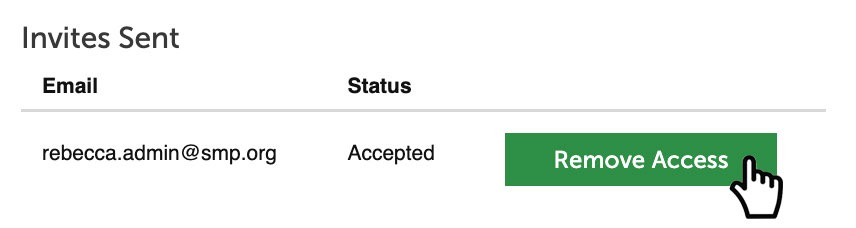
7. Once your team member accepts the invitation, you will be able to view their status on the Teacher Access tab.

Note: To remove teacher resource access, simply select ‘Remove Access’ button and they will no longer have access

Recent Posts